Jump To:
- Supported Contact Data
- Why are all of my Contacts in No Phase?
- Contact Notes
- How to Move a Contact to a Different Location
- Contact Sources
- Contacts with the Same Email
- How to Unsubscribe a Contact
- New Contacts Are Not Saving
- Unable to Edit Existing Contacts
- Unable to Import Contact List
- Contacts Not Receiving Emails or Texts
Supported Contact Data
When bulk-uploading contacts via CSV file, you can include:
- First/Last Name
- Nickname
- Cell Phone & Home Phone
- Full Address including Country Code (US or CA are the only ones accepted)
- Sex
- Birthdate
- Insurance Carrier
- Notes
- Current Phase
- Tags
Click here to learn how to import a contact list
Why are all of my Contacts in No Phase?
- Contacts that are bulk imported to the system will automatically upload as No Phase so that you can update them accurately.
- You can add in phases to separate your Active vs Inactive contacts - for example, active contacts can have the phase 'Patient-ScheduledPlanOfCare' and inactive contacts will have 'No Phase'.
- Keep in mind that when you schedule a Reactivation Campaign, those campaigns are designed to specifically target your contacts in the 'No Phase' status.
Contact Notes
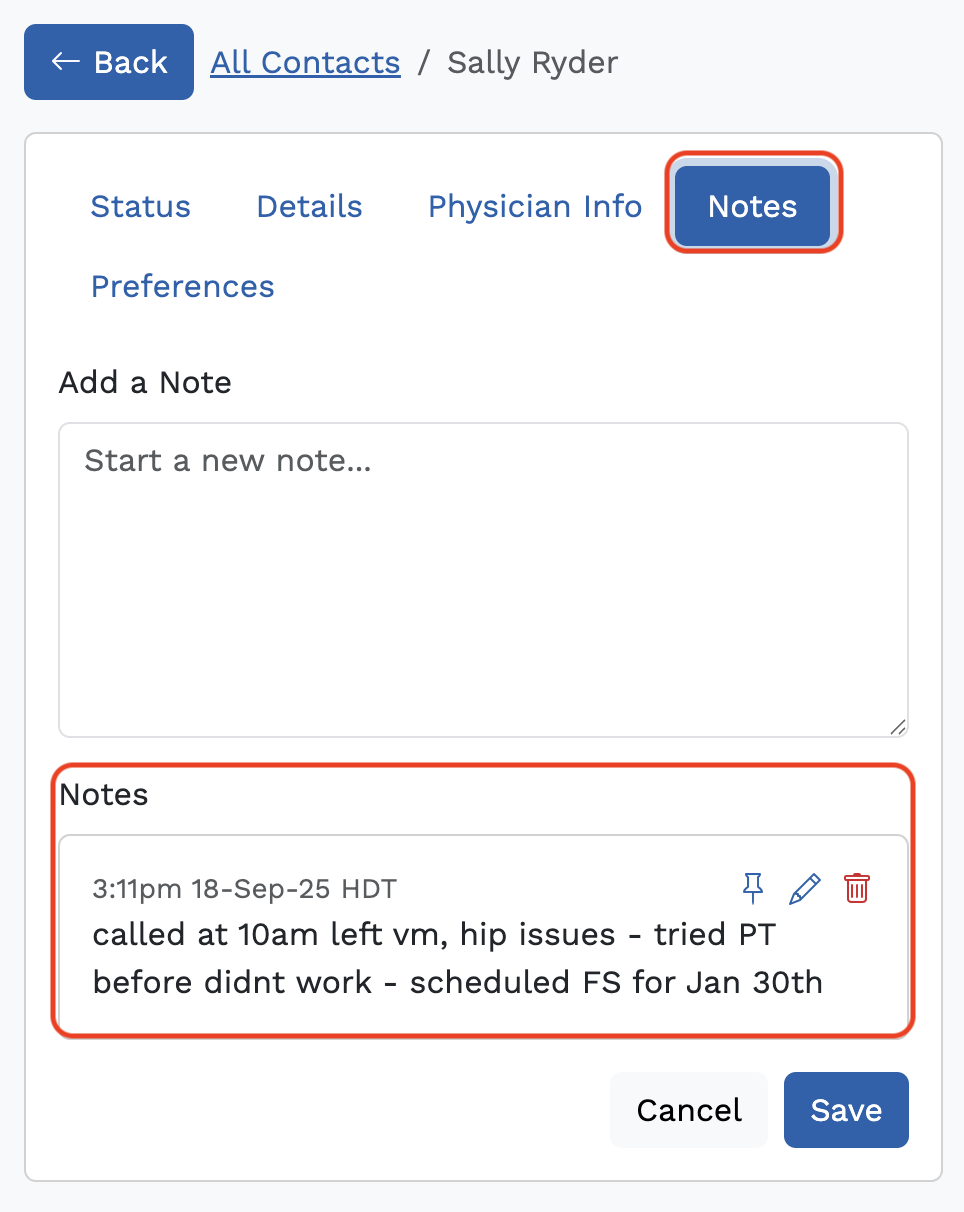
- You can see notes in the contact's profile page.
- Click on the contact's name or search for them manually, then click the Notes tab.
- Click on the contact's name or search for them manually, then click the Notes tab.
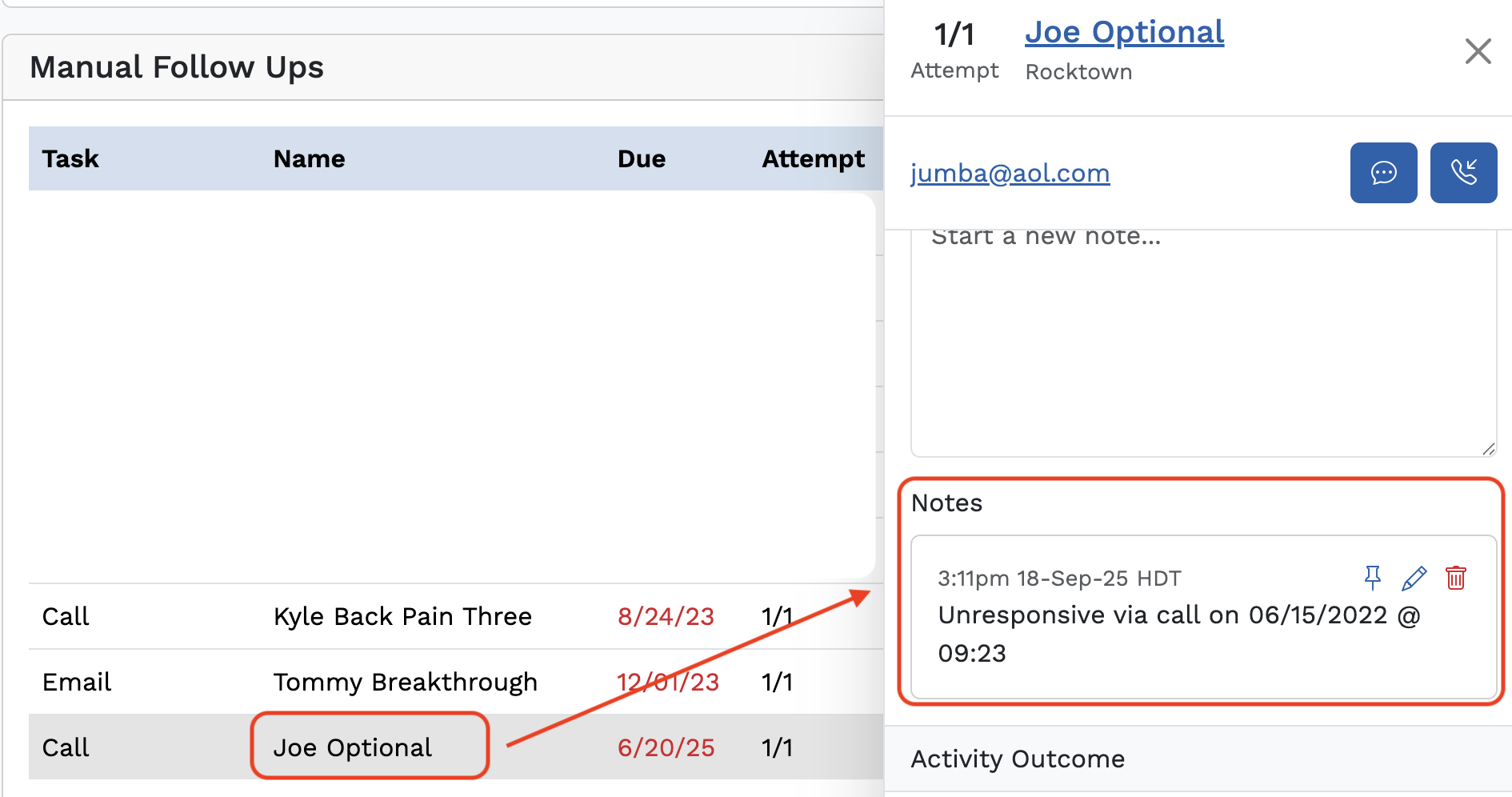
- You can also see notes in the right-hand side panel of the contact's info on the Follow-Up tasks page.
How to Move a Contact to a Different Location
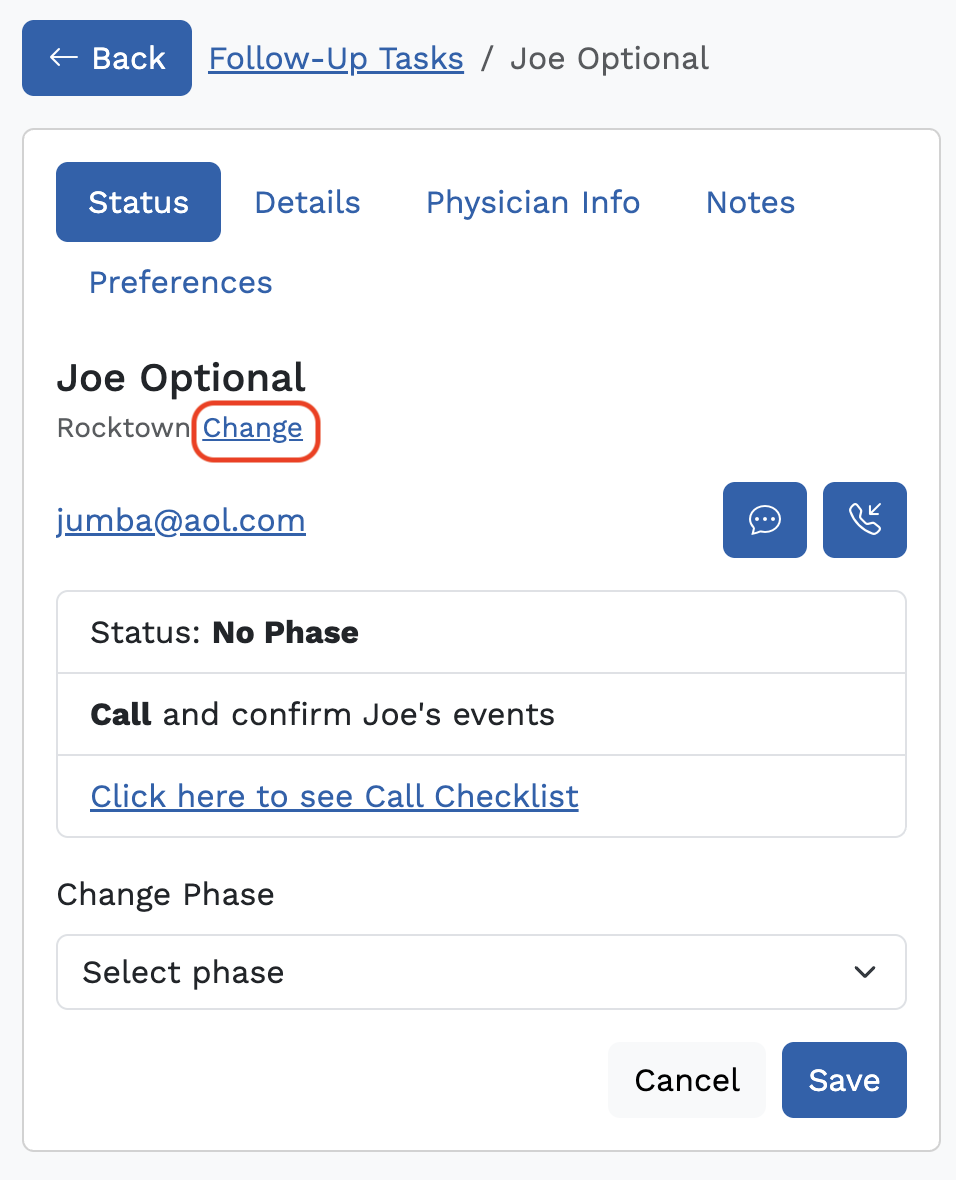
- Open the contact you want to edit by clicking on their name or searching for them manually
- In the contact's profile, underneath the contact's name, click 'Change'
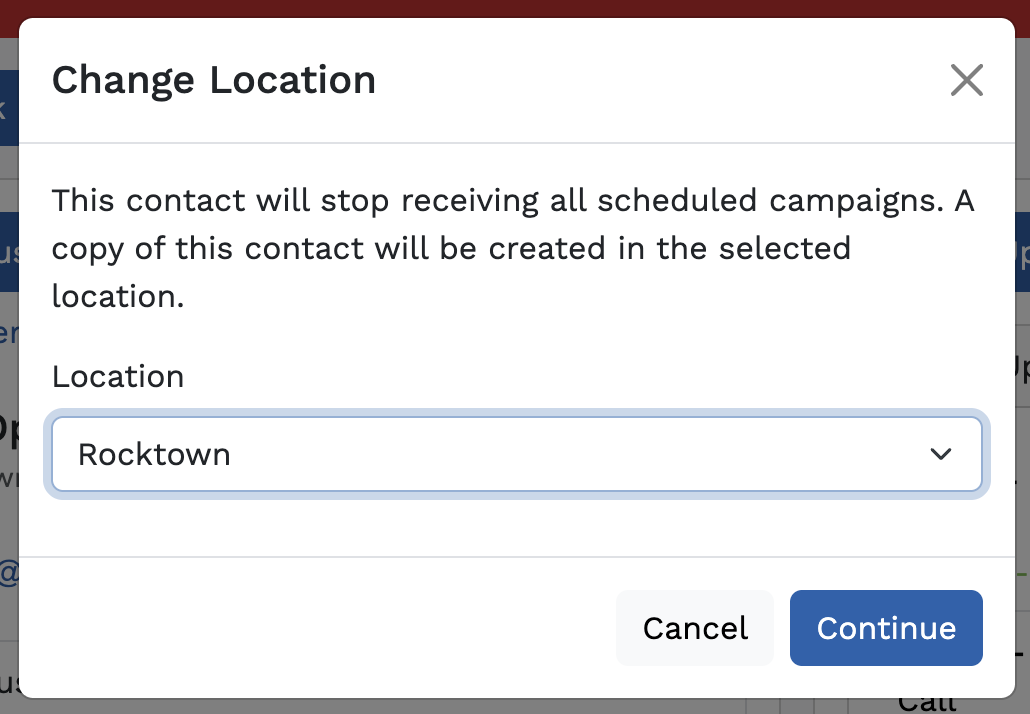
- Select which location you want to move them to
- Click 'Continue' to update the contact
- The contact will be copied to the secondary location
- You will see the contact's profile in both locations, but this is NOT a duplicate profile. You can delete one of the contact's profiles if you do not want them to be added in multiple locations.
Contact Sources
- The 'Source' field is found in the contact's profile page, under 'Details'. It tells you where your leads are coming from. You can see your Contact's Source throughout Breakthrough; on the contact page, on the workshop registrants page, and on your Follow-Up page.
- For more on sources and to learn how to create a custom contact source, click here.
Contacts with the Same Email
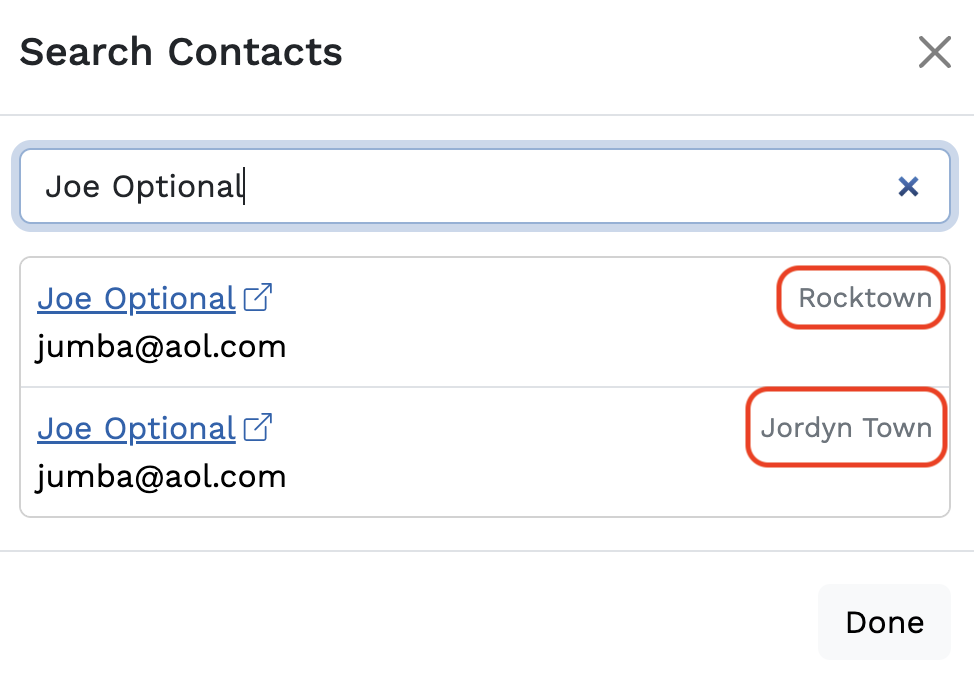
- When two people share an email (i.e. married couples, family members, etc), they are not able to be added to the system - the Breakthrough app will only take unique email addresses. This means that contacts cannot share the same email. They can share the same phone number.
- Contacts that share the same phone number (i.e. married couples, family members, etc.) will receive the same SMS messaging twice, but the message will address them by their name.
- In some cases, minors may need to be put into the system and they need to share the email of the parent/guardian. Please contact support@getbreakthrough.com so that our team can help with more guidance on this.
- There is currently no way to add contacts with the same email address because the system needs to know who to address in automated campaigns. If contacts have the same email in your contact list, the system will automatically skip them by default.
- You should make sure that any contact without an email address has a valid phone number in Breakthrough so that you can still communicate with them via text or call.
- Learn More
How to Unsubscribe a Contact
Within the contact's profile page, their subscription preferences are found within the Preferences tab. Check or uncheck the options, and don't forget to click 'Save.'
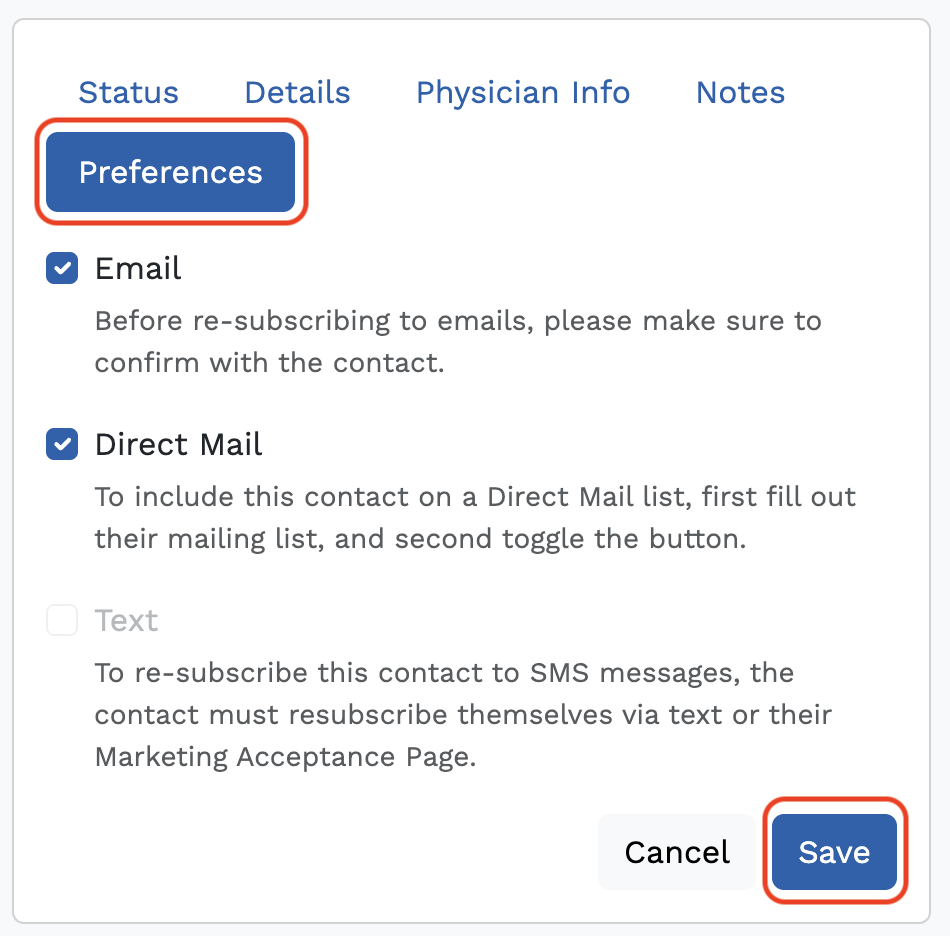
Note: Contacts that unsubscribe to text must resubscribe by texting a supported resubscribe keyword, such as START to your tracking number.
New Contacts Are Not Saving
- If this happens, our first recommendation is to copy/paste the new contact's email address into the search bar at the bottom right of the Breakthrough app. If a different contact appears, this means the email already exists in your system and can't be added again.
- If the contact you're trying to add is a spouse or family member and they share an email address, you can edit the current contact to be both names (ex: Tarzan and Jane); however, this will affect phasing. Whenever possible, you should always try to get separate email addresses (most people have more than one these days!). Learn More
- If there is not a duplicate contact already in the system, sometimes you need to give the system a few minutes to update.
- If, after 5 minutes, you still don't see the contact in your system when you search for their name, try clearing cookies and cache or reach out to support@getbreakthrough.com for help.
Unable to Edit Existing Contacts
- This happens most commonly with contacts that were bulk imported to Breakthrough.
- If you're finding that your contact updates aren't saving, check to make sure the contact has a valid email address.
- After you add an email address, you'll be able to update any other fields on their contact. If the contact you're updating already has a saved email address, try clearing your browser cookies and cache and checking again.
- Reach out to support@breakthroughhipaa.com as we may need to export the list to populate the unique IDs, add in the needed information, then re-import the list in order to merge contacts' updated information in bulk.
Unable to Import Contact List
- Breakthrough requires contact lists to be uploaded in a specific format: contacts must have at least a phone number or an email address, and the file must be uploaded in CSV format. You can download a template for your contacts here.
- If your file is too large (over 10K contacts), you'll want to split the data into two separate CSV files. Alternatively, contact your CSM to request support with uploading your contacts.
Contacts Not Receiving Emails or Texts
- If a contact says they did not receive an email or a text from you, first confirm you have the correct contact info saved in Breakthrough.
- If the contact information is accurate, check their subscription preferences.
- Open the contact in your system and click on the Preferences tab.
- Select Preferences to check their opt-in preferences.
- Test by sending a test Email/SMS campaign message to yourself.
- Reach out to your CSM or Breakthrough Support if you've tried the above steps without success.
Was this article helpful?
That’s Great!
Thank you for your feedback
Sorry! We couldn't be helpful
Thank you for your feedback
Feedback sent
We appreciate your effort and will try to fix the article