Custom tags in Breakthrough help you organize your contacts into specific groups, making it easier to find contacts, create saved contact lists, and target email or SMS campaigns.
What Are Custom Tags?
Custom tags are labels you can add to contacts to help organize and segment your contact list.
Tags can be used to:
- Organize contacts into specific groups.
- Search for contacts on the All Contacts page.
- Create saved contact lists based on specific tags.
- Target segmented groups when scheduling new email or SMS campaigns.
- Import tags using the CSV import workflow.
For example, if you want to send a campaign to contacts who are cash-pay patients, you could add a "Cash Pay" tag to those contacts and use that tag to target your campaign.
How to Add Custom Tags
You can add custom tags directly from the All Contacts page.
Step 1: Open All Contacts
Navigate to the All Contacts page in Breakthrough.
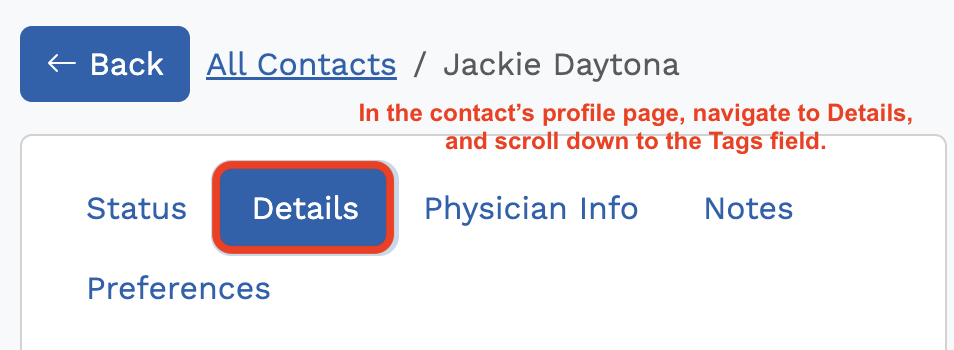
Step 2: Select a Contact
Find and select the contact you want to add a tag to.
Step 3: Add a Custom Tag
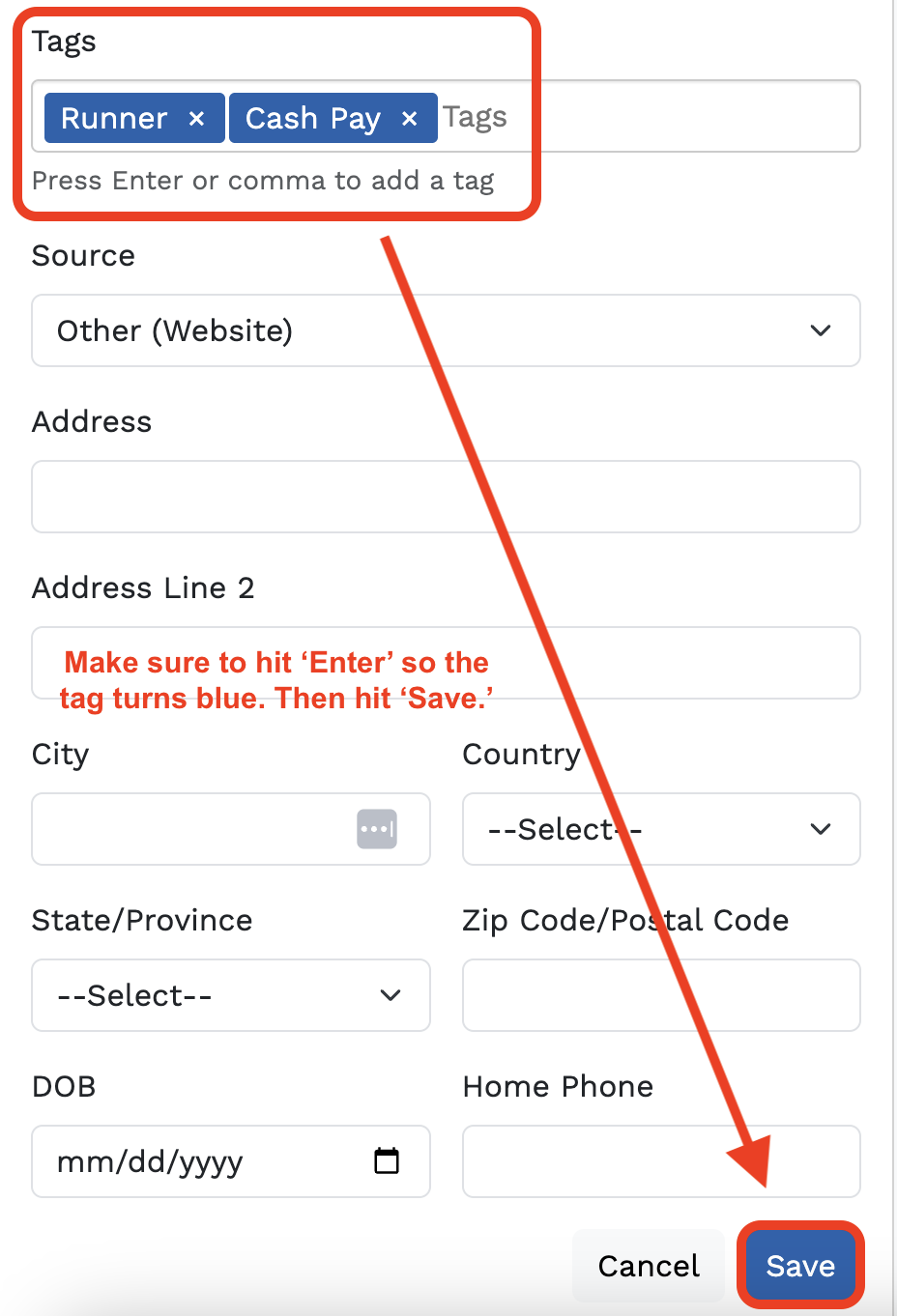
Locate the Tags field and enter the name of the tag you want to add.
If you need to add more than one tag, enter the first tag, followed by a comma, and then enter the next tag.
Important: Press Enter after entering each tag so it saves. The tag will turn blue when it has been saved successfully.
Example -
To add two tags to a contact:
- Type
Runnerand press Enter. - Type
Cash Payand press Enter.
The contact will now have both tags.
How to Remove Custom Tags
You can remove custom tags from contacts on the All Contacts page.
- Open the contact you want to update.
- Locate the Tags field.
- Remove the tag you no longer want associated with the contact.
Removing a tag means the contact will no longer be included in tag-based searches, saved lists, or campaigns that rely on that tag, unless they qualify through another selected tag or filter.
How to Search Contacts by Tags
Custom tags can be used to search and find contacts on the All Contacts page.
For example, if you want to find contacts tagged Cash Pay, you can search or filter your contacts using that tag.
This makes it easier to locate a specific group of contacts without manually reviewing your entire contact list.
Using Tags to Create Saved Contact Lists
Tags can be used as filters when creating saved contact lists.
For example, you could create a saved list of contacts with the Runner tag. This list can then be used to help organize your contacts and target future campaigns.
Saved lists are helpful when you regularly need to work with the same segmented group of contacts.
Using Tags in Email and SMS Campaigns
Custom tags can be used as filters when scheduling new campaigns.
For example, you may want to send an email or SMS campaign to:
- Contacts tagged
Cash Pay. - Contacts tagged
Runner. - Contacts tagged
Batch 1.
By using tags, you can target a specific group of contacts instead of sending the campaign to your entire contact list.
Important: Tags Use OR Logic
When selecting multiple tags for a campaign, the system uses OR logic, not AND logic.
This means the campaign will send to contacts who have any one or more of the selected tags, not only contacts who have every selected tag.
Example: Selecting Batch 1 and Cash Pay Tags
Imagine you create a campaign using these two tags:
Batch 1Cash Pay
The campaign will be sent to:
| Contact | Batch 1 | Cash Pay | Receives Campaign? |
|---|---|---|---|
| Contact A | Yes | No | Yes |
| Contact B | No | Yes | Yes |
| Contact C | Yes | Yes | Yes |
| Contact D | No | No | No |
The campaign will send to all contacts within each of the selected tags.
You do not need a contact to have both tags to qualify. Having either tag is enough.
Remember: Selecting multiple tags does not narrow your audience to only contacts who have all the selected tags. Instead, it includes contacts from each selected tag group.
Importing Custom Tags Using CSV
Custom tags can also be imported through the CSV import workflow.
This is helpful when you need to add tags to multiple contacts at once or are bringing contact information into Breakthrough from another system.
When preparing your CSV import, include the appropriate tag information and follow the standard CSV import workflow.
Best Practices for Using Tags
- Use clear, simple but descriptive tag names that are easy to recognize.
- Keep tag names consistent across your contacts - the spelling and capitalization matters!
- Use tags to organize groups that you may want to target with future campaigns.
- Review your selected tags before scheduling a campaign to make sure you are targeting the intended audience.
- Remember that multiple tags use OR logic, so selecting two tags includes contacts with either tag.
Frequently Asked Questions
Can I use custom tags in Prompt?
No. Custom tags are not yet available in Prompt.
Can I add more than one tag to a contact?
Yes. Enter each tag and press Enter to save it. The tag will turn blue when saved.
Can I use tags to send an SMS or email campaign?
Yes. Custom tags can be used as filters when scheduling new email or SMS campaigns.
If I select two tags, will contacts need both tags to receive the campaign?
No. Tags use OR logic. Contacts with either selected tag, OR both tags, will be included in the campaign.
Can I import tags from a CSV file?
Yes. Custom tags can be imported using the CSV import workflow.
Was this article helpful?
That’s Great!
Thank you for your feedback
Sorry! We couldn't be helpful
Thank you for your feedback
Feedback sent
We appreciate your effort and will try to fix the article